Welcome to StoreYako Documentation
Introduction
Welcome to our Inventory System! This documentation will guide you through the features and usage of our platform.
Getting Started
To access the Inventory System, visit www.storeyako.com and log in with your credentials.
Adding Items to Inventory
To add new items to your inventory, follow these steps:
- Click on the "New Item" button in the dashboard.
- Enter the item details, including name, description, quantity, and price.
- Click "Save" to add the item to your inventory.

Selling Items
To sell items from your inventory, use the following steps:
- Find the Item you want to sell.
- Click the "Sell" button in the items details
- Complete the payment process as prompted.
- A notification will be sent to the admin.
Deleting Items
To delete an item from your inventory, proceed as follows:
- Find the item you wish to remove.
- Click on the "Delete" button in the item's details.
- Confirm the deletion when prompted.
Caution: Deleting an item will permanently remove it from the system.
Editing Items
To edit item details, make the necessary changes:
- Locate the item you want to modify.
- Click on the "Edit" button in the item's details.
- Update the relevant information (e.g., quantity, price, description).
- Save your changes to update the item.
Search and Filter
Our Inventory System provides powerful search and filtering capabilities:
- To search for specific items, use the search bar at the top of the dashboard.
- To apply filters, click on the "Filter" button and select the desired criteria.
Frequently Asked Questions (FAQs)
Q: Can I import items in bulk?
A: No, at the moment you cannot import items in bulk. However, we are excited to announce that in our next version upgrade (1.1), this feature will be available.
Q: How can I generate sales reports?
A: Navigate to the "Insights" section, where you can view the generated sales reports for any time period.
Q: How can I view the current Inventory?
A: Navigate to the "Insights" section, you will see a graph named "Current Inventory".
Q: How can I view the average weekly sales?
A: Navigate to the "Insights" section, you will see a graph named "Average Weekly Sales"
Q: How can I add a customer?
A: Navigate to "New Customer" there you will be able to add details such as (name, email, phone number, etc).
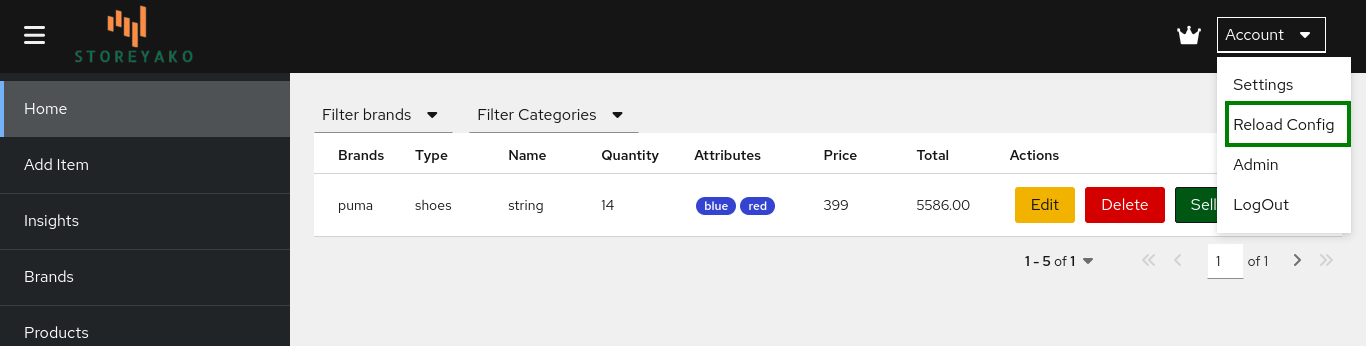
Q: How can I reload store Configuration?
A: Click the "Account" button and choose "Reload Config"
Q: Why do I need to reload Config before adding an Item?
A: Reloading config makes Categories, brands, attributes and Suppliers available. If you do this, you will have an option for selecting.
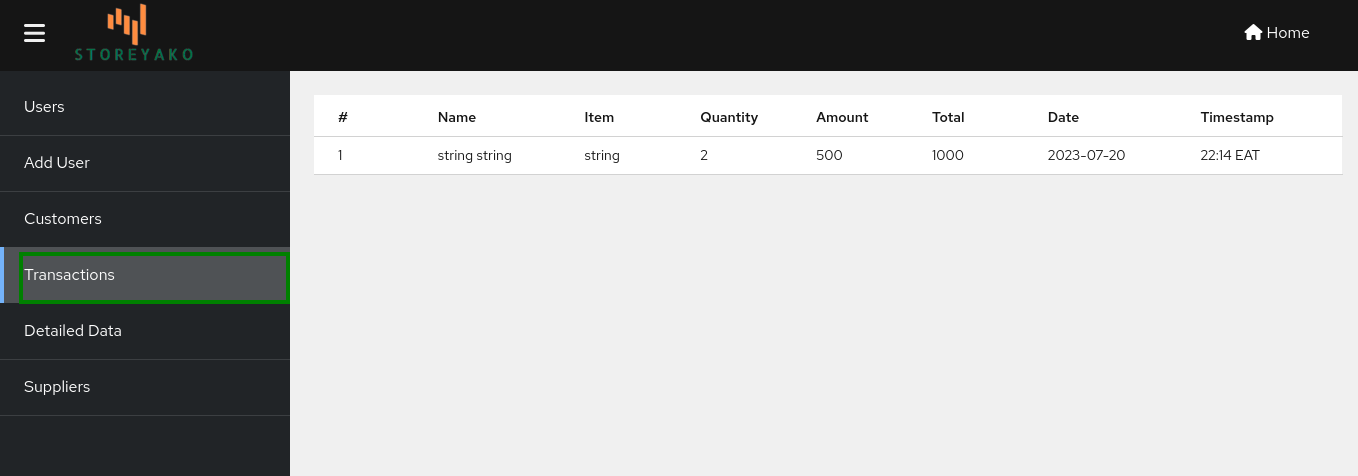
Q: Can I view all the transactions made?
A: Yes, You can view all the transactions made. You first need to go to the admin panel. There you can click "Transactions" from the sidebar.
Admin
Creating a New User for Your Store
Note: This refers to someone you are working with in your store or your employee
To create a new user, follow these instructions:
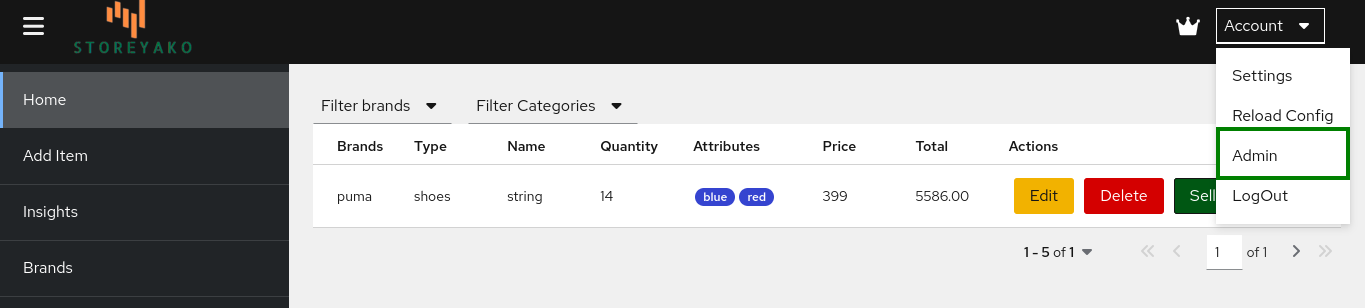
- Go to the Admin panel by clicking the "Account" button and choosing the "Admin" option.
- Select "New User" option from the sidebar.
- Add the details, (first name, last name, email) and press submit.
- Tell your user to check his/her inbox, she will find credentials to login to their account (please advise him/her to change password).